Start a job, tick the checklist, add photos, finish
Updated For team leaders and cleaners
Before you go
- Tap the job on Today.
- Check Access & safety (keys, codes, pets, hazards) and Job notes.
- Tap Navigate to open the address in maps.
- Tap On my way · notify client when you leave.
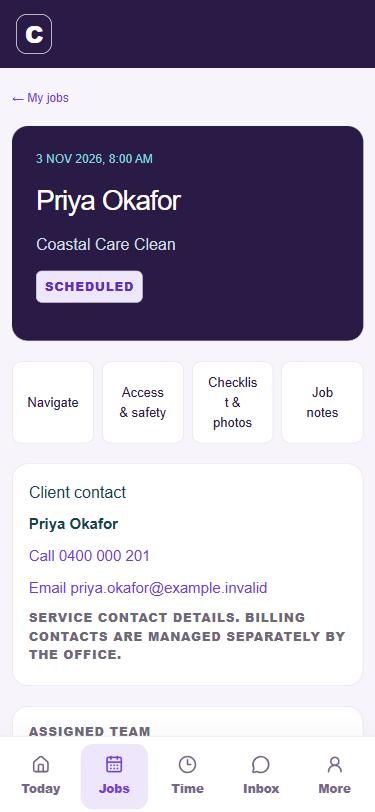 Job on the phone
At the job
- Scroll down and tap Start job. The timer shows how long is left.
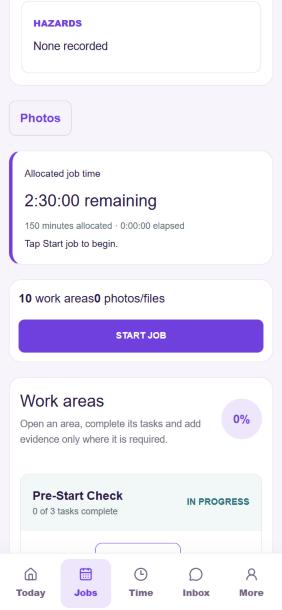 Start job
- Under Work areas, open each area (for example Kitchen), tick each task when done, and add photos where the area asks for them.
- If something is broken or unsafe, report it from the job so the office knows straight away.
Finish
- When every area is done, tap the finish button at the bottom of the job.
- The office sees the job as completed, and the invoice is prepared.