Cancelling removes one clean from the cleaner's calendar and keeps it in the job history. Nothing is emailed or charged automatically.
Steps
- Open the job and choose More actions → Cancel / rebook. (Or scroll to Cancel or end work → Open cancellation options.)
- Choose one side of the window:
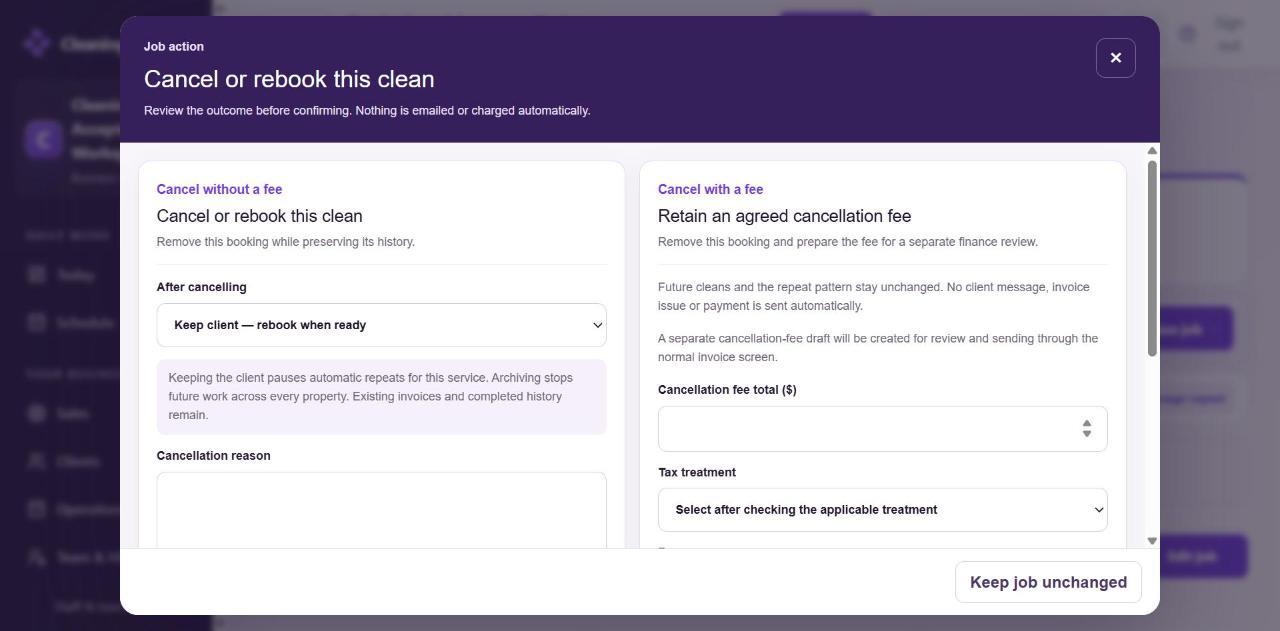
Cancel or rebook - Cancel without a fee: pick After cancelling (Keep client — rebook when ready, or archive), type a Cancellation reason, tick I confirm the cancellation, then Confirm cancellation.
- Cancel with a fee: enter the Cancellation fee total ($), choose the Tax treatment and a Reason, and confirm. A separate fee invoice draft is created for you to review and send from Invoices.
- To change your mind, choose Keep job unchanged.
Important
- Keeping the client pauses automatic repeats for this service. To keep the repeat running and only skip this date, use Pause, skip or book by hand → Skip instead.
- Archiving stops future work across every property. Invoices and completed history stay.