Your services are what clients are quoted and booked for. Each one needs a name, a starting price and the time one cleaner usually takes.
Before you start
- Have your price list handy: each clean type, its starting price, and how long it takes one cleaner.
- Changing a price later never changes quotes that were already accepted or jobs already booked. They keep the price that was agreed.
Steps
- Go to Settings → Sales, services & quoting → Services, packages & add-ons.
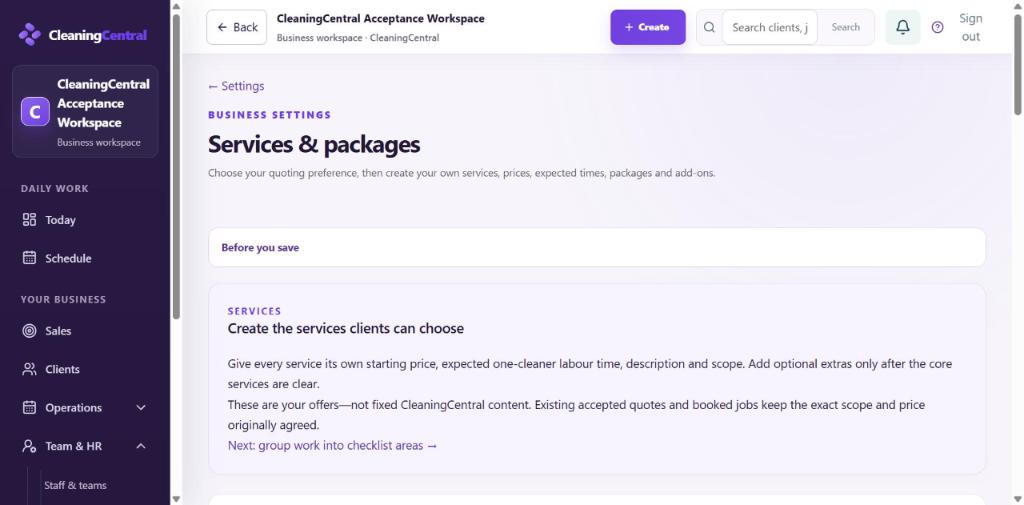
Services and packages - Under Services, choose + Add service.
- Fill in:
- Service type: residential, commercial, end of lease, Airbnb and so on
- Name: what the client sees, for example "Fortnightly Home Clean"
- Description: one or two lines on what's included
- + Add included scope summary: the main tasks, if you want them listed on the quote
- Starting price
- Expected labour time (minutes, one cleaner): for example 120 for a two-hour clean. The booking window uses this to suggest how long the job takes.
- + Add optional size-based labour time: extra time per bedroom or bathroom, if your times vary by size
- Tax applies: leave ticked unless the service is GST-free (NDIS is handled separately)
- Available for use: untick to hide a service without deleting it
- To sell extras, go to Optional add-ons and choose + Add add-on, for example "Inside oven", "Inside windows" or "Bed making, per bed".
- Choose Save changes at the bottom. Nothing changes until you save; Discard changes throws away your edits.
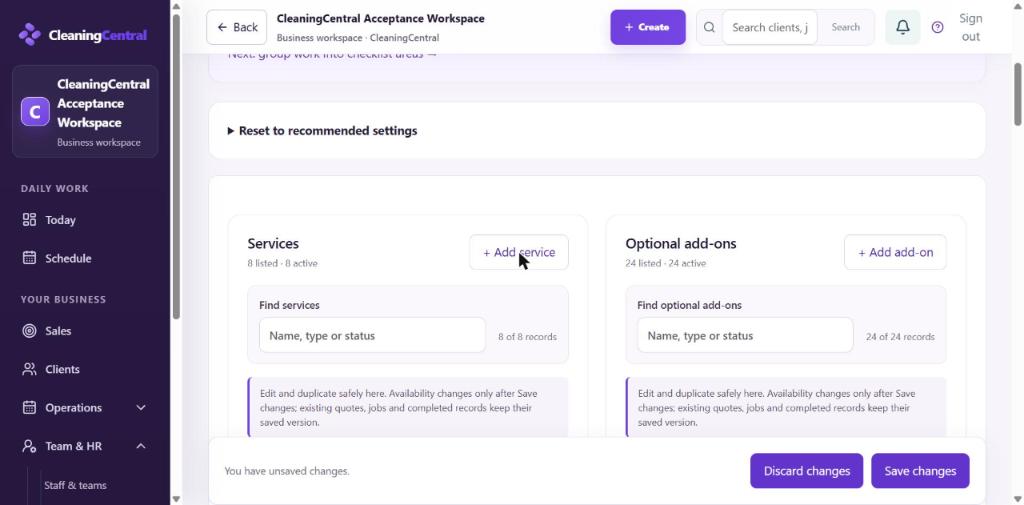
Adding a service
What happens next
- New services appear straight away in Create a quote and Book a job.
- Next, set up the checklist your cleaners tick for each service: Settings → Jobs, forms & checklists → Forms & job checklists.
Tips
- Keep 4–8 core services. Too many makes quoting slower.
- Use Duplicate draft on an existing service to make a similar one quickly.