A quote is saved as a draft while you build it. Nothing is sent to the client until you publish it.
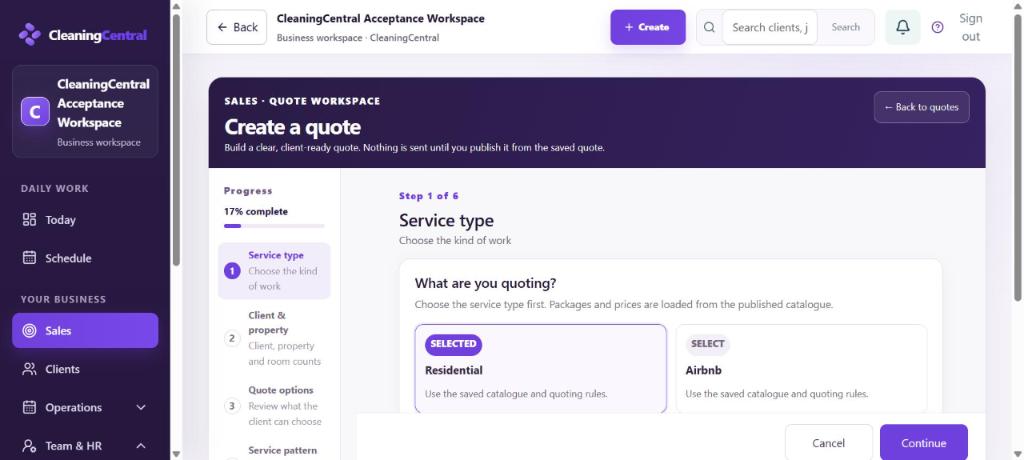
Steps
- Go to Sales and choose New quote, or continue from a saved enquiry.
- Service type: choose the kind of work (for example Residential or Airbnb). The packages and prices come from your services.
- Client & property: find the client, or choose Client not listed? Add them here. Enter Bedrooms, Bathrooms and Property levels; size and level charges are added automatically.
- Quote options: check the options the client can choose between, and any add-ons.
- Service pattern: if you know it, choose the Service frequency (One-off, Weekly, Fortnightly, Every 3 weeks, Every 4 weeks or Monthly). This doesn't book a date.
- Terms: write the Message shown to the client and, if you like, an Internal office note (never shown to the client).
- Review: check everything and save. The quote is saved as a draft.
- Open the saved quote and publish it. The client gets a link to view and accept it online.
What happens next
- The quote moves across the Quotes board: Needs action → Sent → Viewed → Accepted.
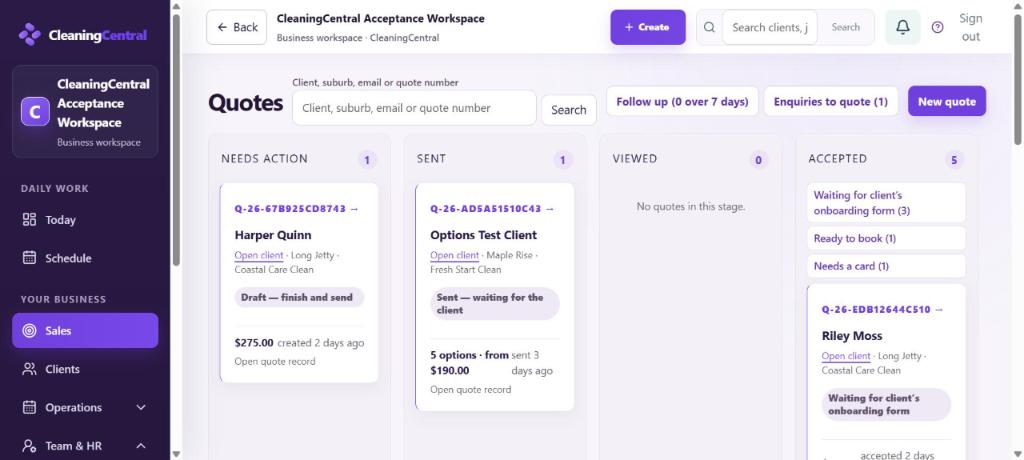
Quotes board - Follow up (n over 7 days) shows quotes sent more than a week ago with no answer.
- When the client accepts, see A quote was accepted.