Online payments use Stripe. You decide whether clients can pay online, whether they can save a card, and when a card or deposit is needed before you book.
Only the Workspace owner can change these settings.
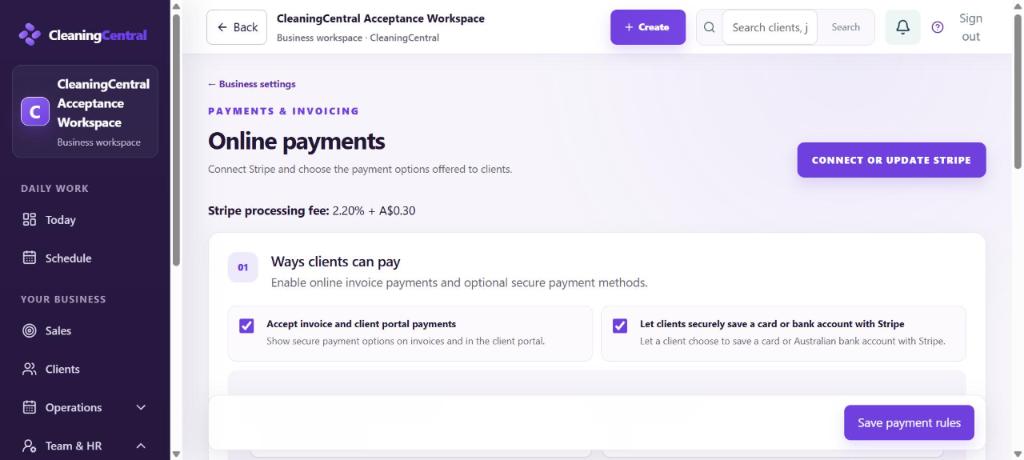
Steps
- Go to Settings → Connections → Payment rules (Online payments).
- Choose Connect or update Stripe and follow Stripe's steps. You'll need your business and bank details for Stripe, not for CleaningCentral.
- Under 01 Ways clients can pay:
- tick Accept invoice and client portal payments so invoices have a pay-online link;
- tick Let clients securely save a card or bank account with Stripe if you want to charge saved cards.
- Choose Require a saved card or bank account:
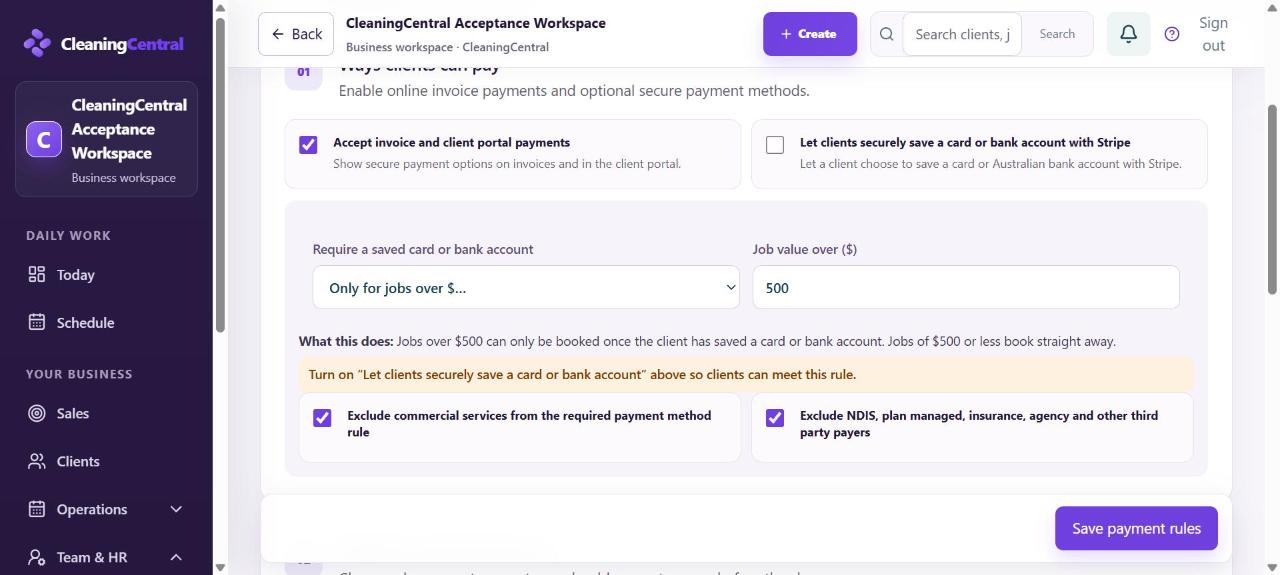
Card rule - Never: jobs book straight away.
- Only for jobs over $…: set Job value over ($), for example 500. Smaller jobs book straight away.
- Only for a new client's first job over $…: protects first jobs from new clients only.
- Always: every new booking needs a saved card.
Read What this does under the choice; it explains the rule in plain words.
- Leave Exclude commercial services and Exclude NDIS, plan managed, insurance, agency and other third party payers ticked unless you have a reason. Those clients usually pay on invoice.
- Under 02 Deposits and prepayments, choose whether a quote acceptance asks for a deposit, and for which job values. Check the dollar amount carefully: a threshold of $4 means almost every job.
- Under 03 Receipts and follow up, choose automatic receipts and failed-payment notices.
- Choose Save payment rules.
What happens next
- When a booking needs a card, the booking window shows Card needed with Send card link and Book without a card. See "Card needed" when booking.
- The Stripe processing fee is shown at the top of the page.