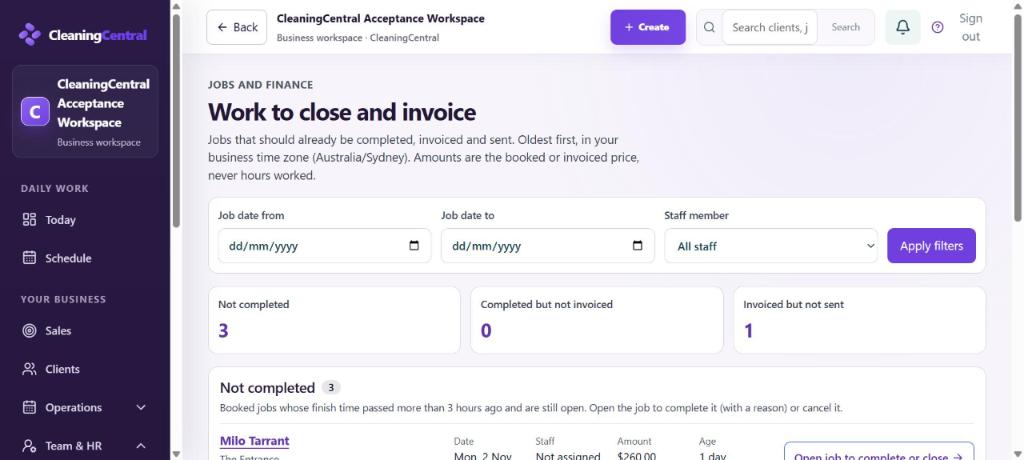
Close & invoice shows jobs that should already be completed, invoiced and sent, oldest first. Amounts are the booked or invoiced price, never hours worked.
Steps
- Go to Close & invoice (or Work to close and invoice → Open the full list on Today).
- Use Job date from / to and Staff member to narrow it down, then Apply filters.
- Work through the three lists:
- Not completed: the finish time passed more than 3 hours ago and the job is still open. Choose Open job to complete or close, then mark it complete (with a reason) or cancel it.
- Completed but not invoiced: choose Create draft invoice. $0 jobs and jobs whose invoice was voided aren't listed.
- Invoiced but not sent: drafts never issued, NDIS invoices held for review (with the reason), and issued invoices never sent or opened. Choose Open draft to send.
- Aim for all three counts at zero before the end of each week.