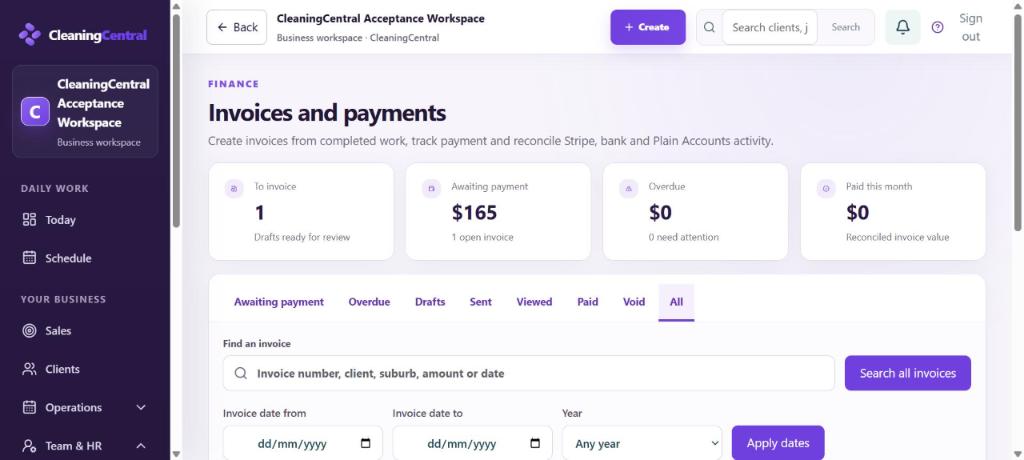
Find an invoice
- Go to Invoices. The tiles show what's To invoice, Awaiting payment, Overdue and Paid this month.
- Use the tabs: Awaiting payment, Overdue, Drafts, Sent, Viewed, Paid, Void, All.
- Type in Find an invoice (number, client, suburb, amount or date) and choose Search all invoices. One exact invoice number opens that invoice directly.
- Narrow by Invoice date from / to or Year, then Apply dates. The list shows 50 at a time ("Showing 1–50 of N").
Approve and send a draft
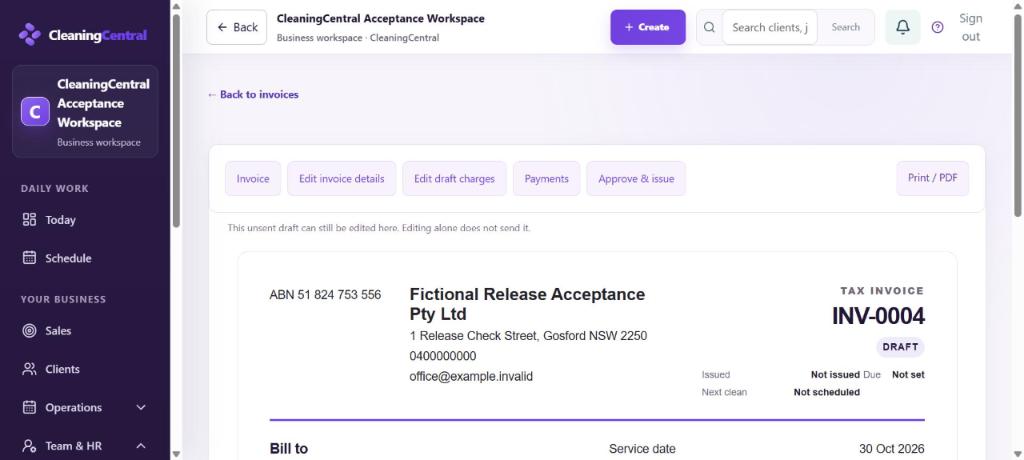
- Open the draft. Check the lines with Edit invoice details or Edit draft charges.
- Choose Approve & issue. The client gets the invoice with a pay-online link (if online payments are on).
- Print / PDF gives a copy to save or attach.
Mark invoices paid by bank transfer
- On the list, tick the invoices that were paid.
- Choose Mark as paid. For a part payment, open the invoice and use Payments.
Card payments made online are marked paid automatically.
Older invoices
Invoices brought over from your old system may say "Shown from the original invoice details". That's normal: totals, payments and balance are correct. The PDF is offered only when the lines add up exactly.