Assign a cleaner (Day view)
- Open Schedule → Day for the date.
- Find the job in the Unassigned row (dashed amber), or open To assign this day and find it in the tray.
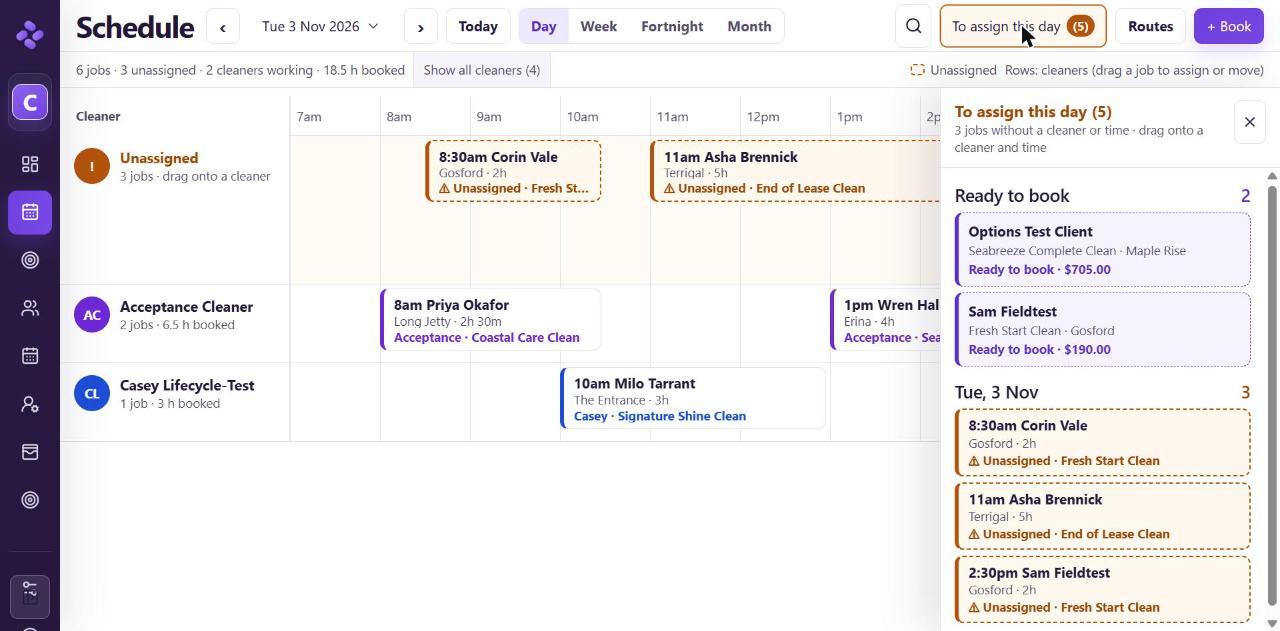
To assign tray - Drag the card onto the cleaner's row, at the time you want.
- CleaningCentral checks the cleaner's other jobs, leave and availability. If there's a clash, it tells you and nothing is changed.
- Choose whether to notify the cleaner and the client, then confirm.
Move a job to another day (Week or Month view)
- Open Week or Month.
- Drag the card to the new day. In Week and Month views this changes the date only; the time and cleaner stay the same.
- Confirm the change and choose who to notify.
Without dragging
Click the card, choose Edit schedule, and change the date, time or cleaner in the form.
Good to know
- Moving one clean doesn't change the repeat pattern. To stop or change the pattern, see Pause a repeat.
- Completed jobs can't be moved.