Each person needs a team record (their details and work preferences) and a login with a role.
Roles
| Role | Can do |
|---|---|
| Workspace owner | Everything, including payment rules, subscription and Stripe |
| Administrator | Run the business day to day: clients, quotes, jobs, team, most settings |
| Scheduler / office coordinator | Book, assign and move jobs; manage clients |
| Finance | Invoices, payments, timesheets and payroll hand-off |
| Team leader | The cleaner app, plus their team's jobs |
| Field worker | The cleaner app: their jobs, checklists, times and messages |
Add a team member
- Go to Team & HR → Staff & teams and choose Add team member.
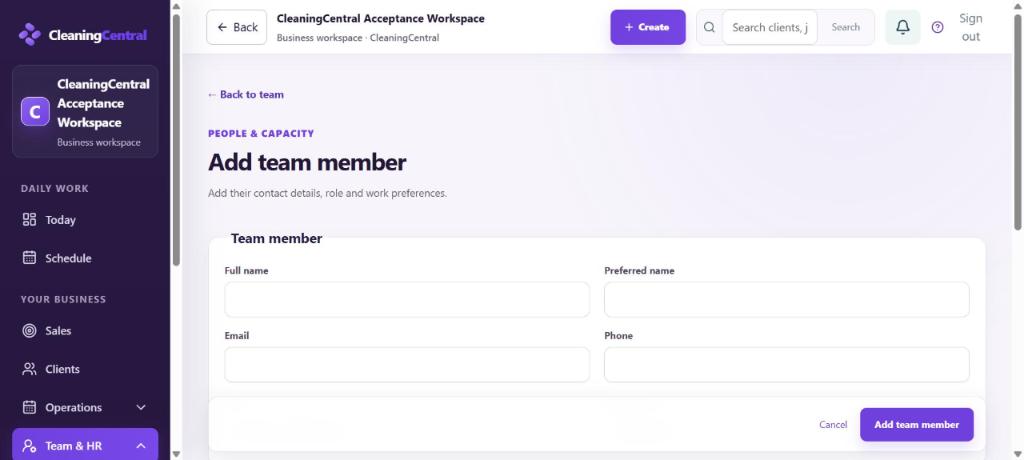
Add team member - Enter Full name, Preferred name, Email and Phone.
- Choose their Role and Employment type (Employee, Casual, Contractor or Other).
- Under Work preferences, add their preferred weekly hours, jobs per day, home suburb, maximum hours per day, and whether they can travel to jobs on their own. These help when you plan the schedule.
- Choose Add team member.
Give them a login
- Go to Settings → People, HR & permissions → Roles & permissions (User access).
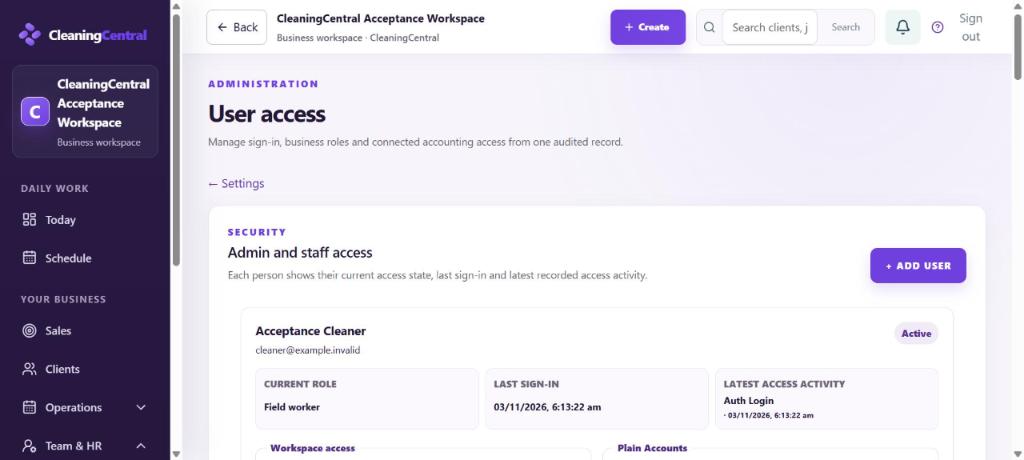
User access - Find the person. Under Workspace access, set the Access role and Access state (Active).
- Choose Save access.
- Choose Send password reset to email them a link to set their own password, or Create login link to share a one-off sign-in link.
Tips
- Give the least access that does the job. Most cleaners only need Field worker.
- When someone leaves, set their access state to inactive rather than deleting them, so their past jobs and timesheets stay linked.