You can bring your records across from a spreadsheet or another system. Nothing changes until you approve the import.
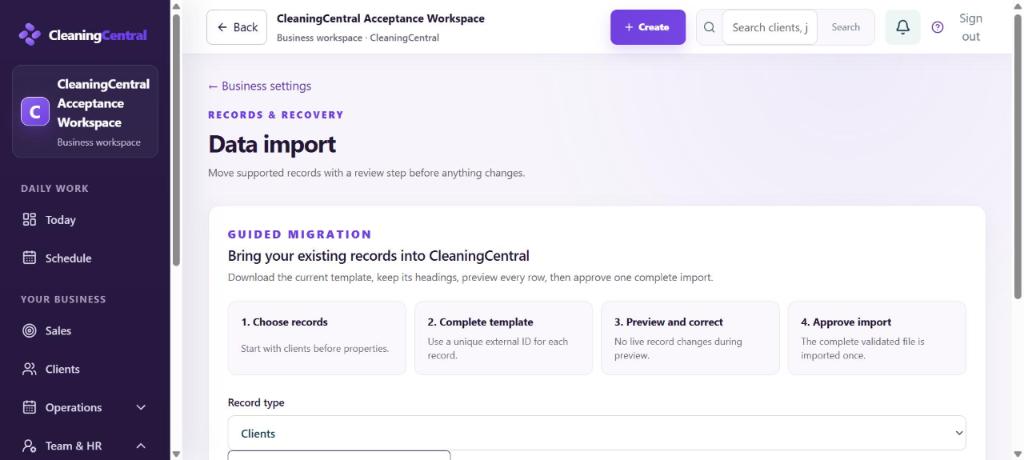
Before you start
- Export your clients from your old system or spreadsheet.
- Import in this order: Clients, then Properties, then Staff and contractors, then Service catalogue if you didn't add services by hand.
- Each row needs a unique external ID: your old system's client number, or just 1, 2, 3… Properties use it to link to the right client.
Steps
- Go to Settings → Records, retention & recovery → Data import.
- Under Record type, choose Clients.
- Choose Download clients CSV template. Keep the headings exactly as they are.
- Copy your data into the template, one client per row, and save it as CSV.
- Under Completed CSV, choose your file, then Validate and preview.
- Read the preview. Rows with problems are marked with what to fix, for example a missing email or a duplicate ID. During preview nothing is changed in your workspace.
- Fix the rows in your spreadsheet and preview again until it's clean.
- Approve the import. The whole validated file is imported once.
- Repeat for Properties (using the same client IDs), then Staff and contractors.
What happens next
- Open Clients and spot-check a few records.
- Imported addresses that Google can't match are marked so you can fix them. See Driving route could not be checked.
- Repeat cleans aren't created by the import. Set each regular client's service and book their next clean (Book a job).
Need help?
Choose Need help with your import? on the same page. Founding customers can ask for a setup call.