The same Book window opens from the client file (Book a job), from the Schedule (+ Book), from + Create, or from an accepted quote (Schedule first clean).
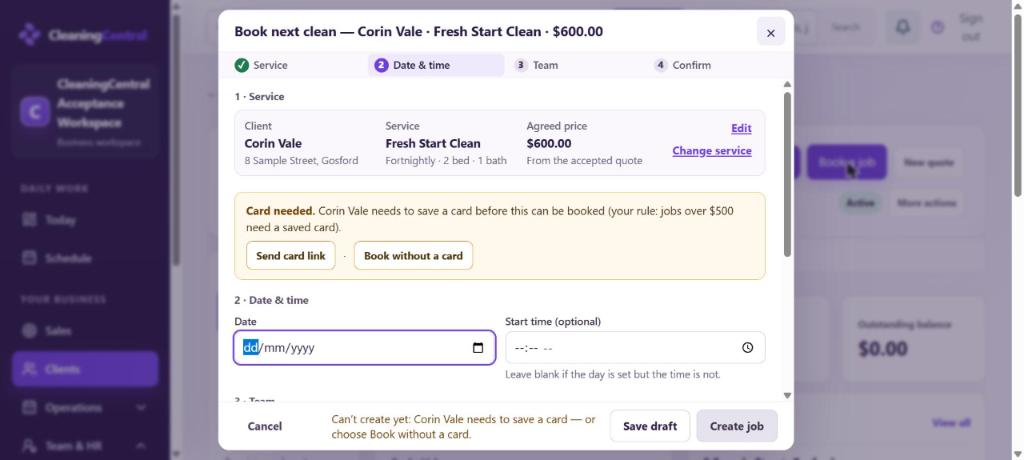
Steps
- 1 · Service: check the client, service, frequency and agreed price. Choose Edit to change this visit's price or details, or Change service to book something else.
- 2 · Date & time: choose the Date. Start time is optional; leave it blank if the day is set but not the time, and the job shows as "Time to confirm".
- 3 · Team: choose a cleaner or team, or Assign cleaners later (the job goes to the To assign tray). Set the number of Cleaners. Open Duration and arrival window to change how long it takes or give the client an arrival window.
- 4 · Confirm: add Notes for the office if needed, check the summary line, and choose Create job.
Save draft keeps your work without booking. Cancel closes the window without saving.
What happens next
- The job appears on the Schedule straight away. Assigned cleaners see it in their app.
- Clashes with the cleaner's other jobs or leave are checked before it saves.
- If the window shows Card needed, see "Card needed" when booking.
- If it says the driving route couldn't be checked, see this fix.